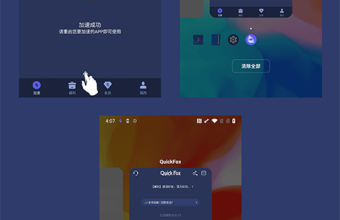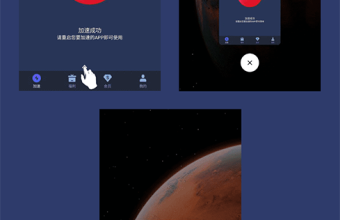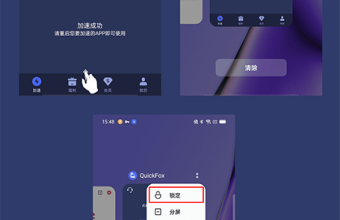



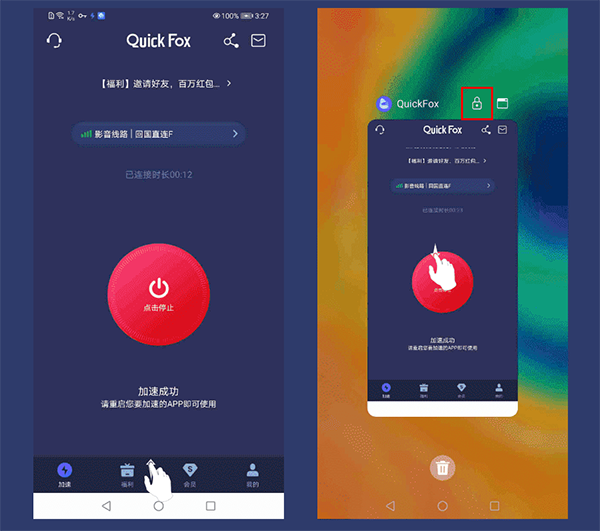
1. [Lock QuickFox] Swipe up from the bottom to pull out the task management interface, swipe down QuickFox or click the lock icon to lock it;
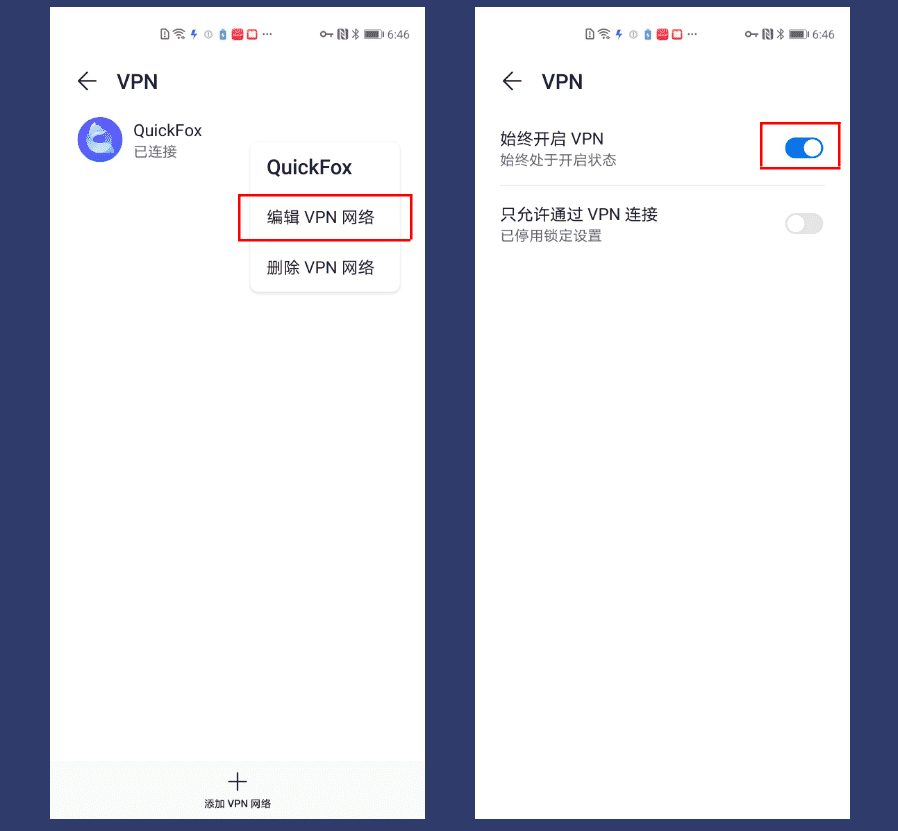
2. [Keep the network on] Open "System Settings - More Connections - Network" in sequence, long press QuickFox, select Edit Network, and turn on Always on Network. Some models do not have this operation, so you can ignore this operation;
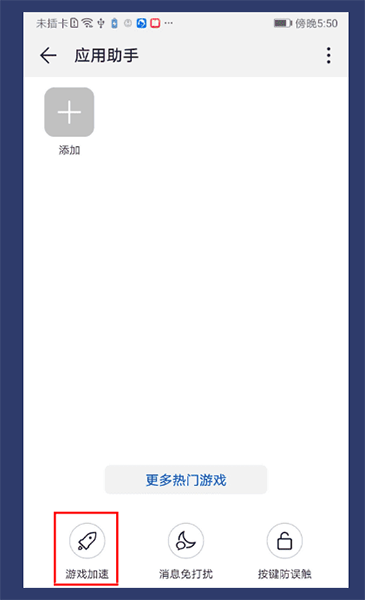
3. [Turn off the system accelerator] Use the mobile phone search function to search for "App Assistant". After entering the App Assistant, click "Game Acceleration" to dim it, and then you can turn off the system accelerator;
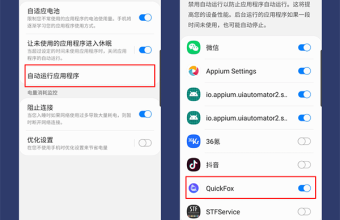
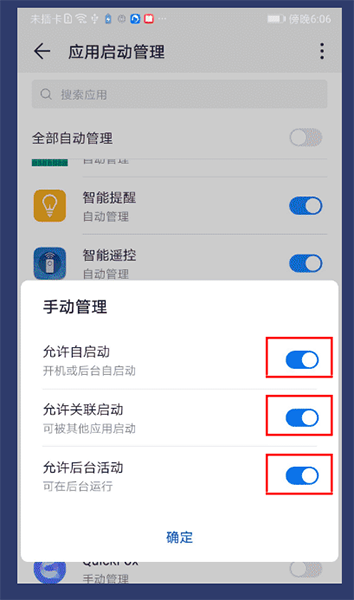
4. [Keep QuickFox started] Open "System Settings - Applications - Application Startup Management - QuickFox" in sequence and allow QuickFox to start;
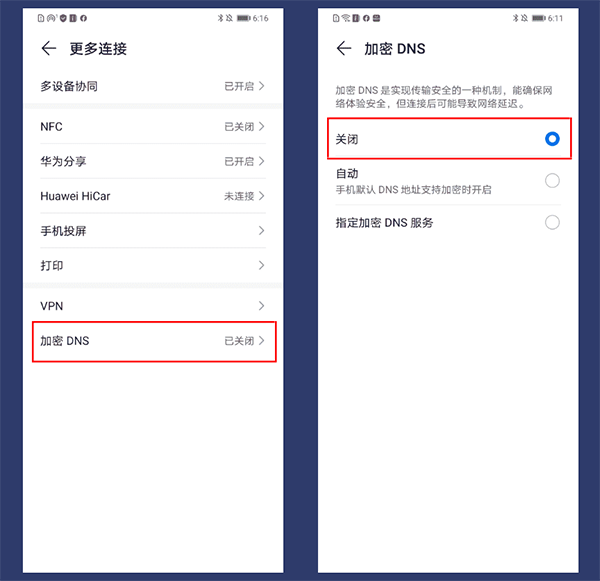
5. [Turn off DNS encryption] Open "System Settings - More Connections - Encrypted DNS" in sequence and turn off the DNS encryption function;
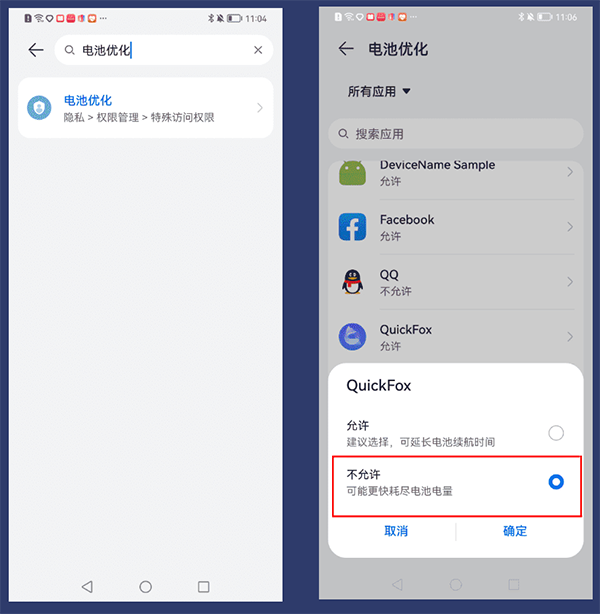
6. [Turn off battery optimization] Search for "Battery optimization" in the system settings, find QuickFox and select [Do not allow];